
Finish within 8 hours. The TAP you got by text message stops working 8 hours after it was sent. After that, contact the Service Desk for help.
Set up a passkey on iPhone
Your passkey is saved in your iCloud Keychain, so it works on every Apple device signed in with your Apple ID.
What you need
- An iPhone or iPad running iOS 16 or newer
- The device is signed in with your personal Apple ID (iCloud)
- Your username from ASRC IT, sent to the email address on your HR record
- Your Temporary Access Pass (TAP), sent by text message to your personal phone or given to you by the Service Desk
Watch the walkthrough (3 min)
Step by step
-
Open the Safari app.
-
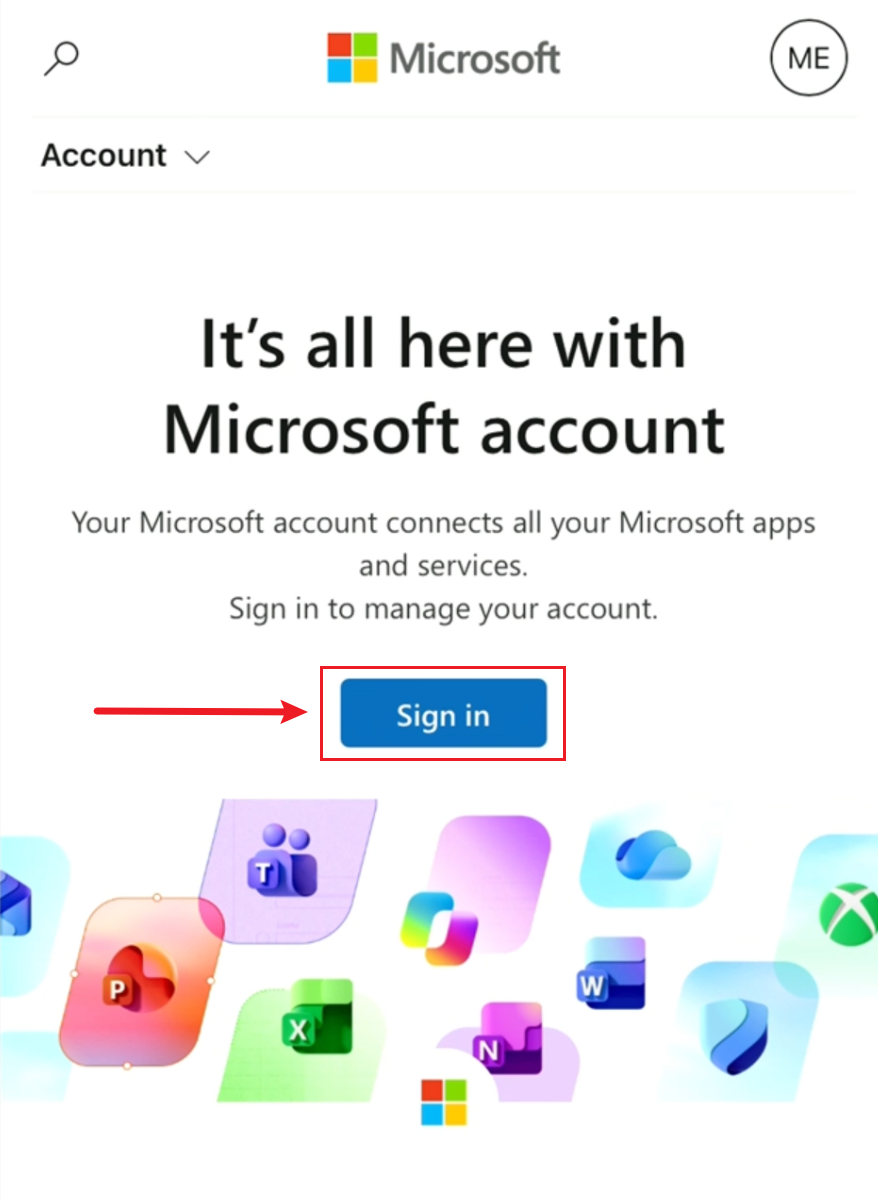
Go to https://account.microsoft.com and tap Sign in.
-
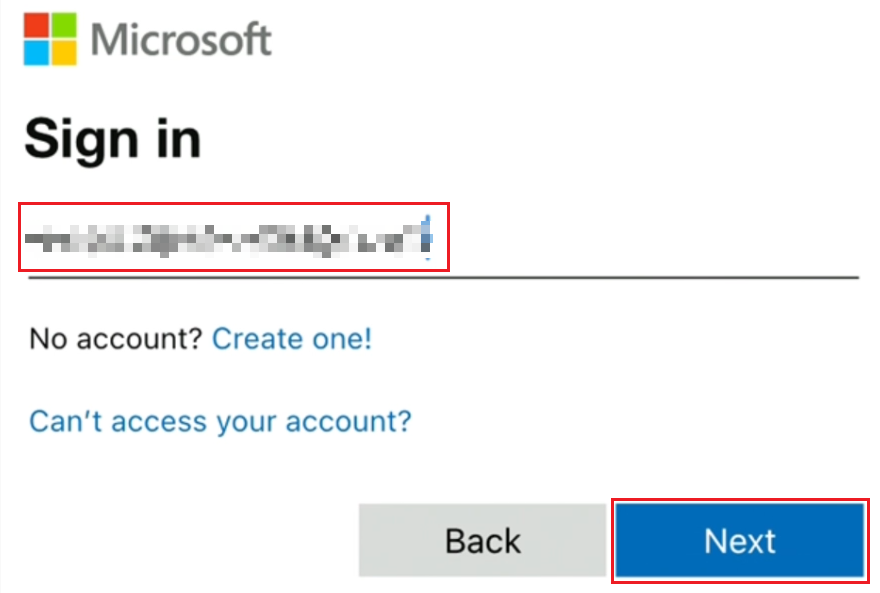
On the sign-in screen, enter your username and tap Next.
-
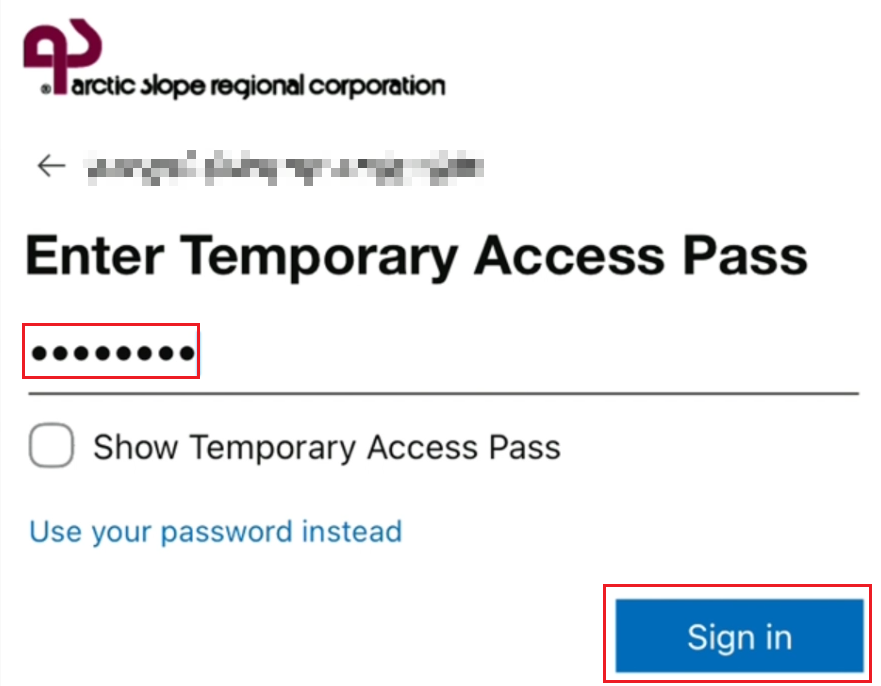
Enter the 8-digit Temporary Access Pass (TAP) you got by text message or from the Service Desk. Then tap Sign in.
-
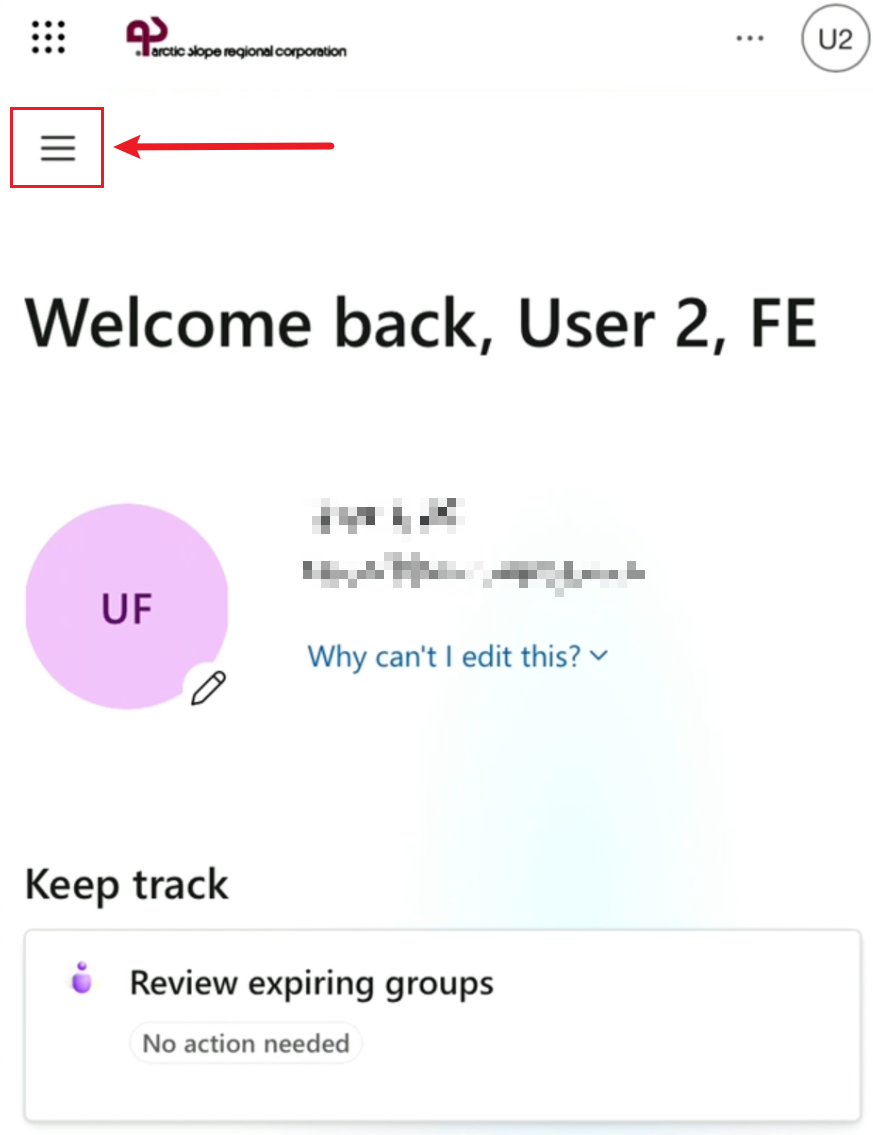
You're now on your account page. Tap the menu button (three lines) in the top-left corner.
-
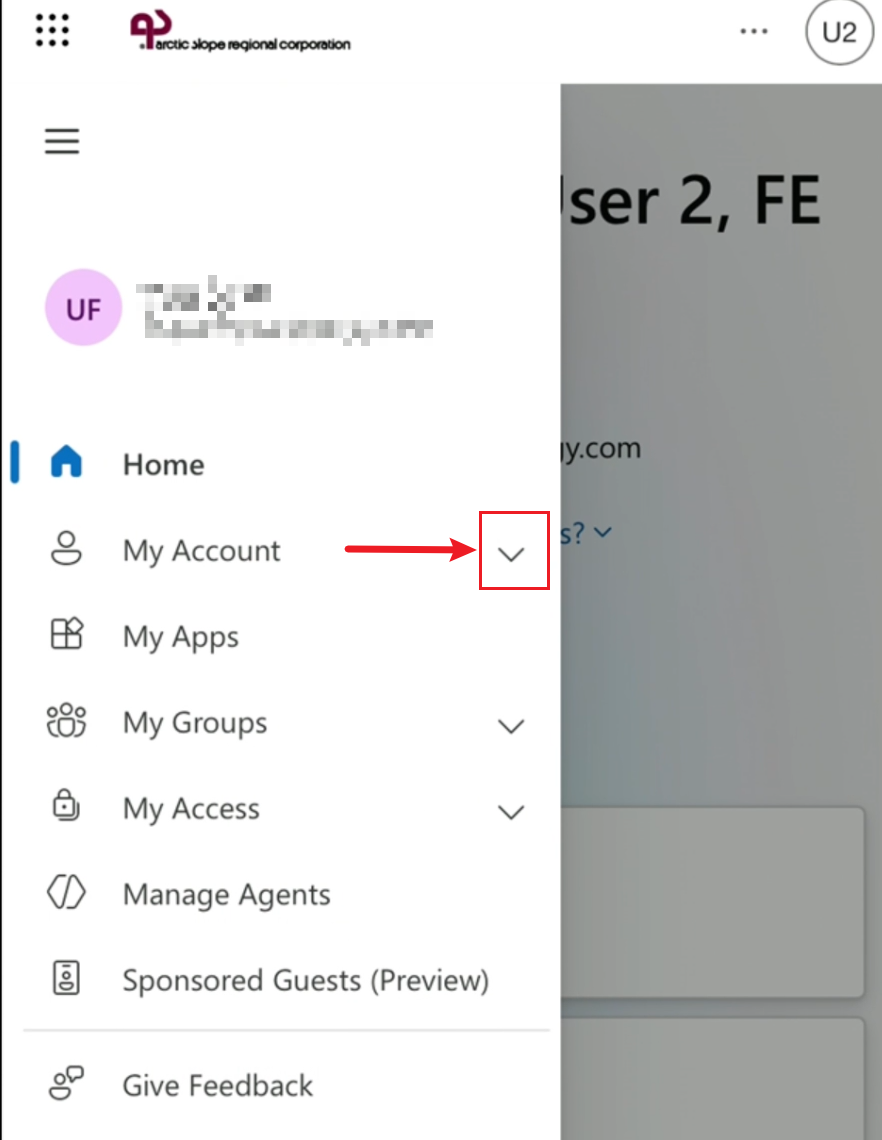
Tap the down arrow next to My Account.
-
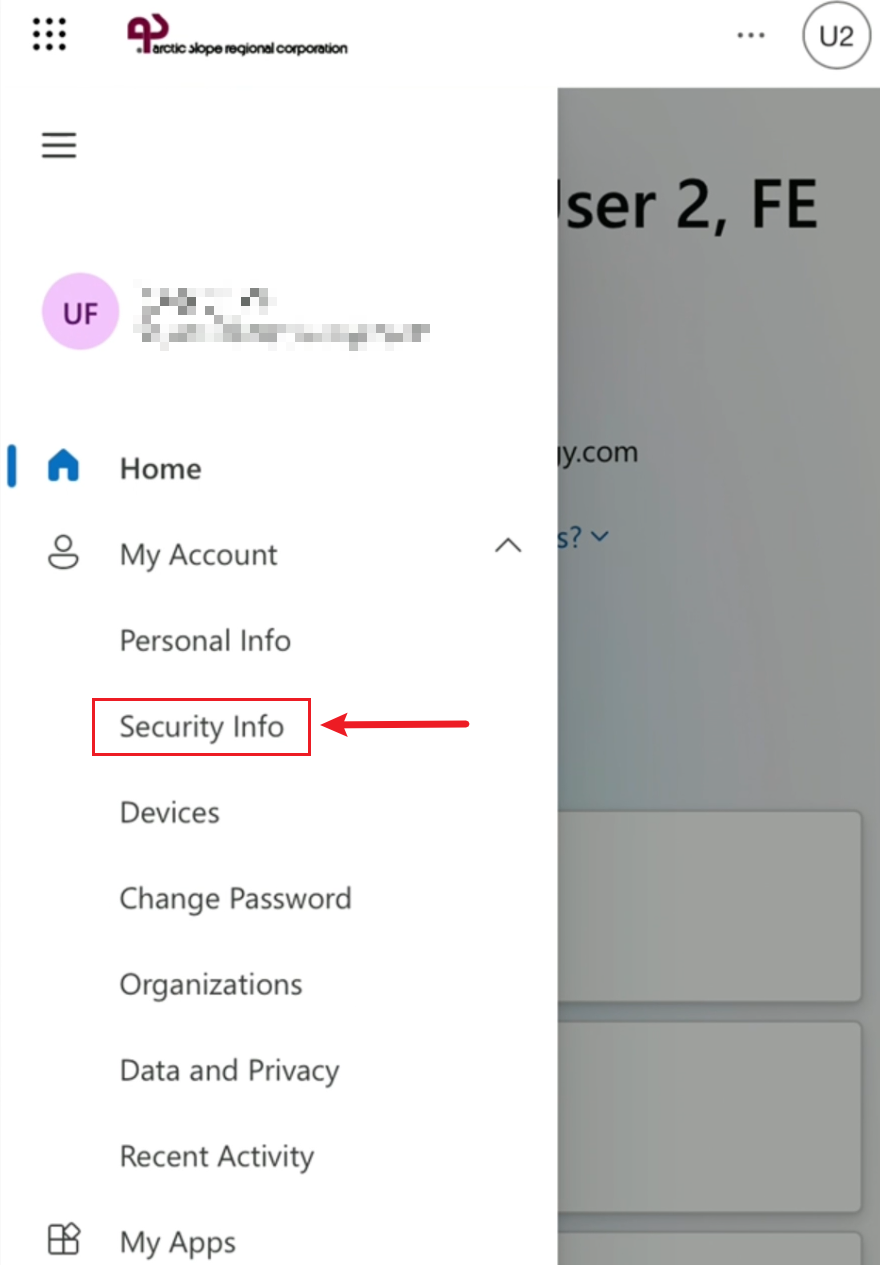
Tap Security Info.
-
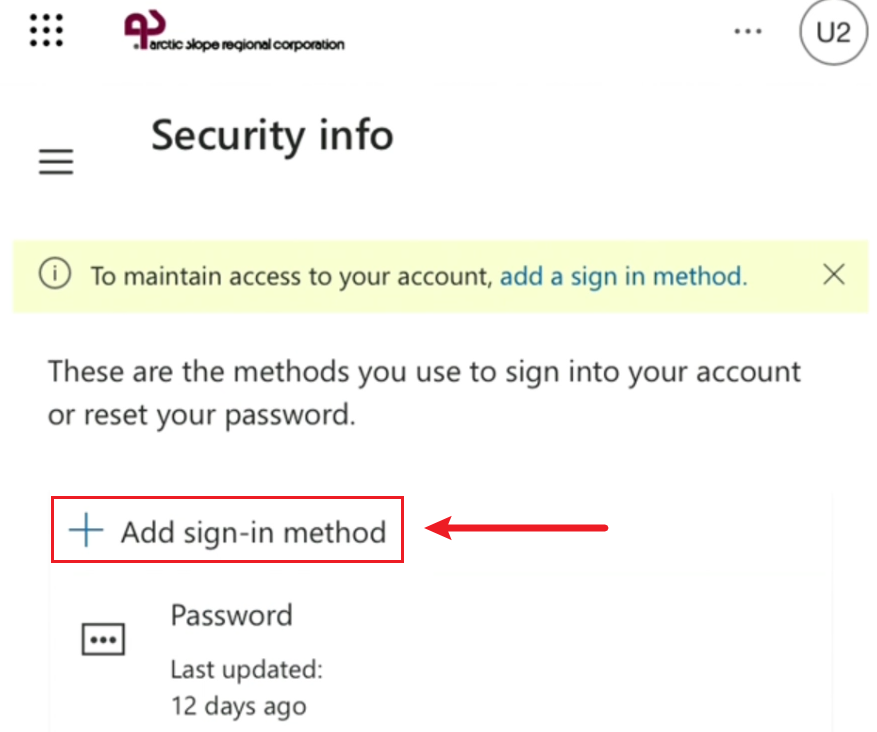
This page lists all your sign-in methods. Tap Add sign-in method.
-
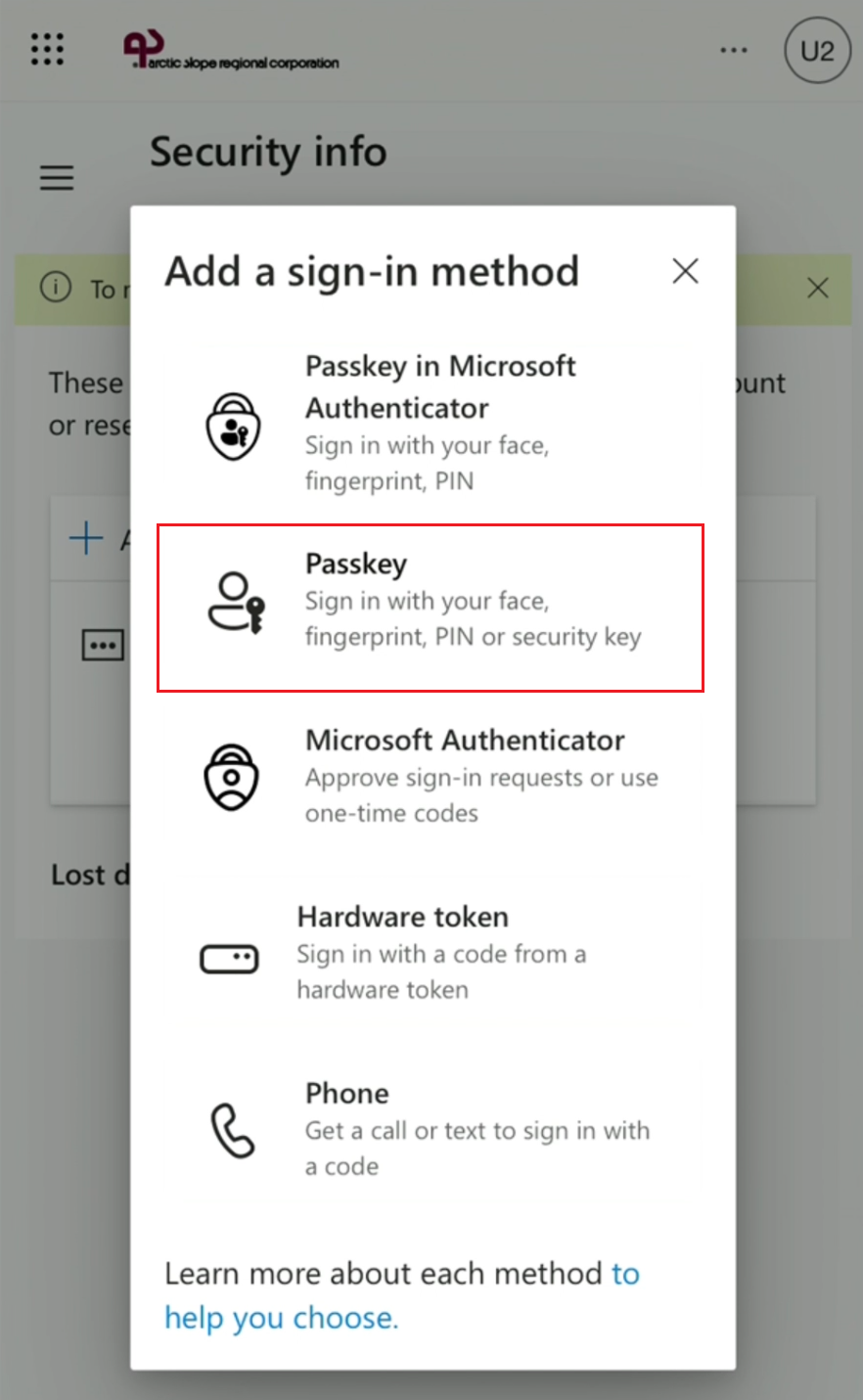
Tap Passkey.
-
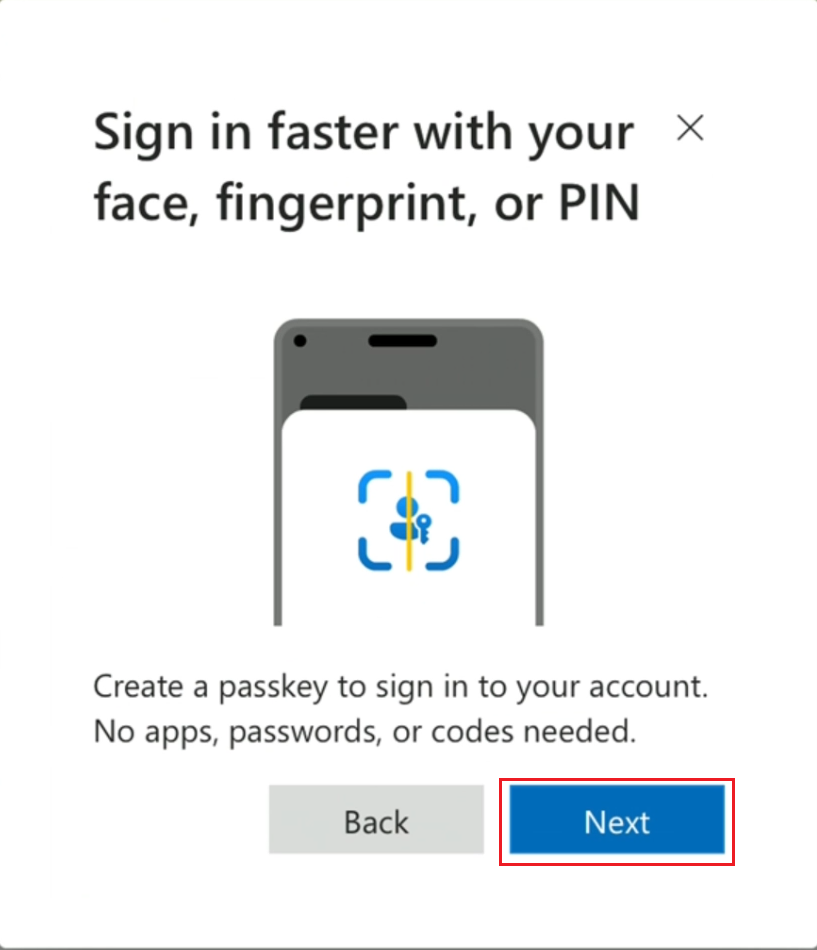
Tap Next.
-
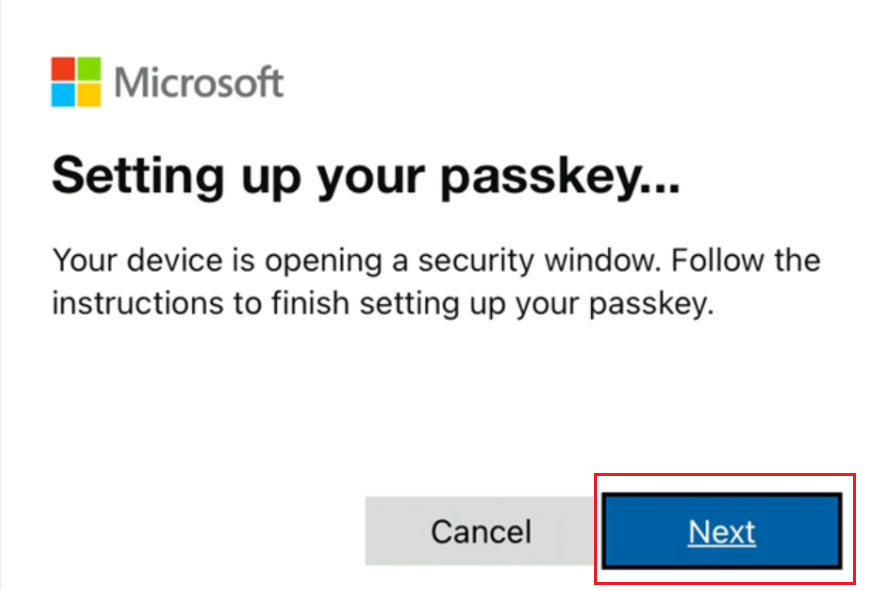
Passkey setup starts. Tap Next again.
-
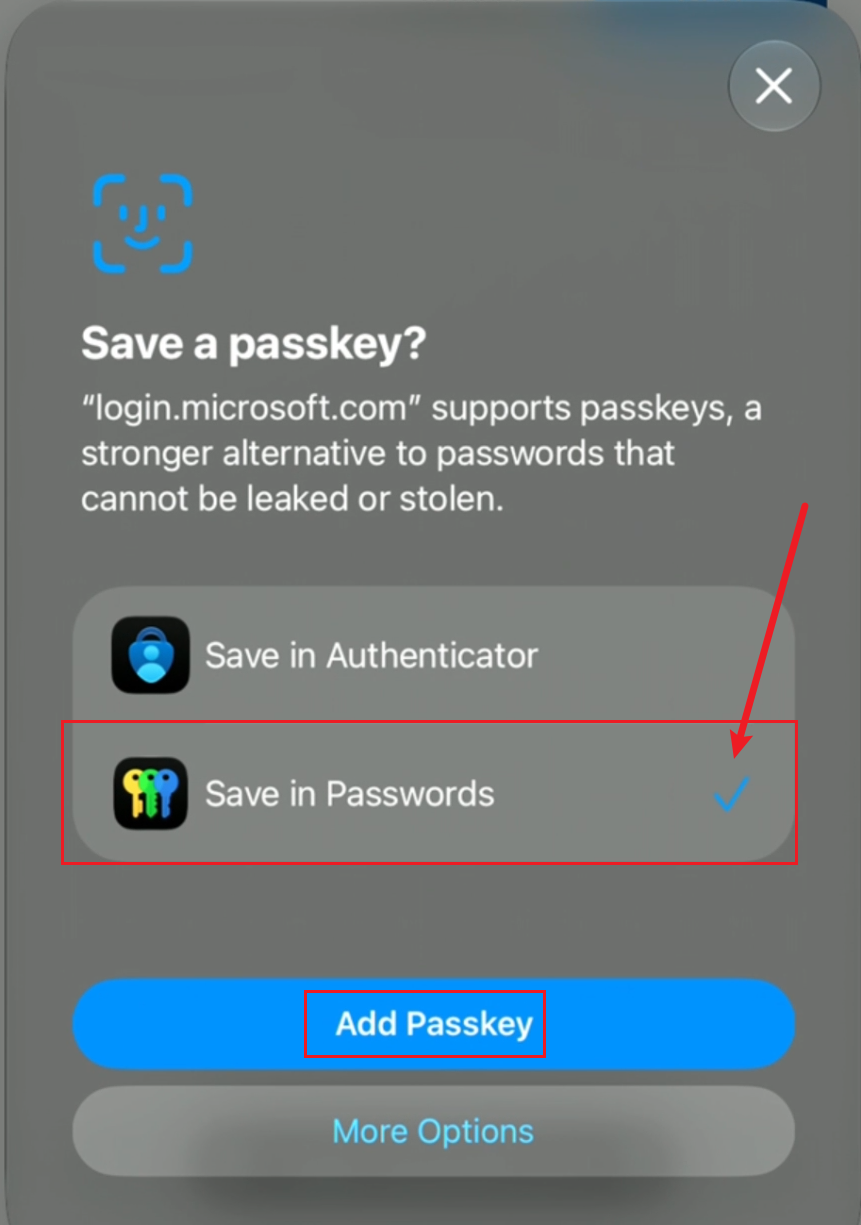
If you're asked where to save the passkey, choose Save in Passwords, then tap Add Passkey.
-
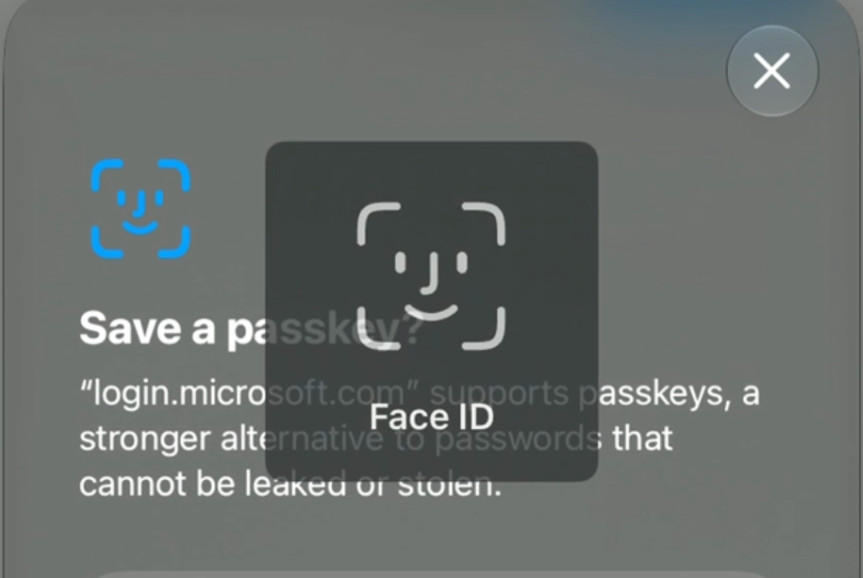
Your phone asks for Face ID, Touch ID, or your device passcode. Complete the check.
-
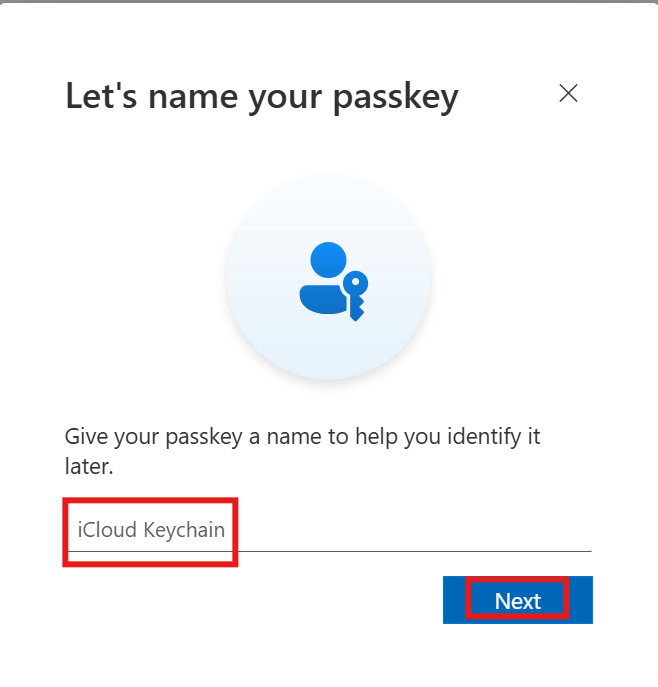
The passkey is created. You can rename it or keep the default name. Tap Next.
-
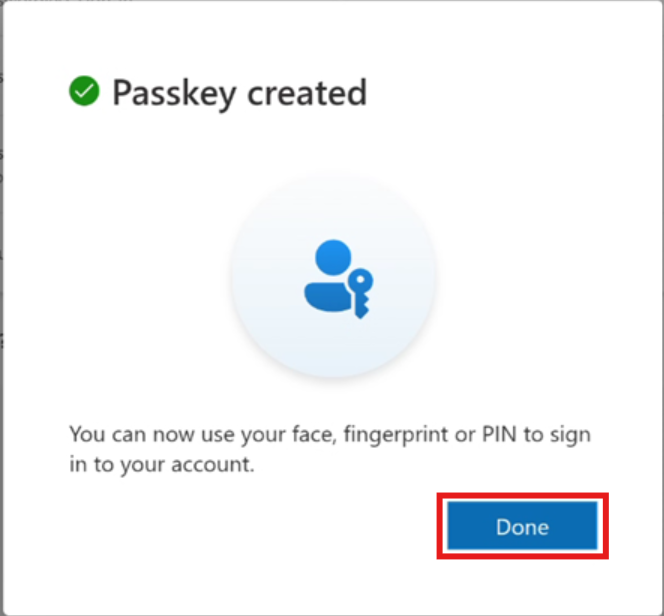
Tap Done.
-
Your synced passkey now shows on the Security Info page.
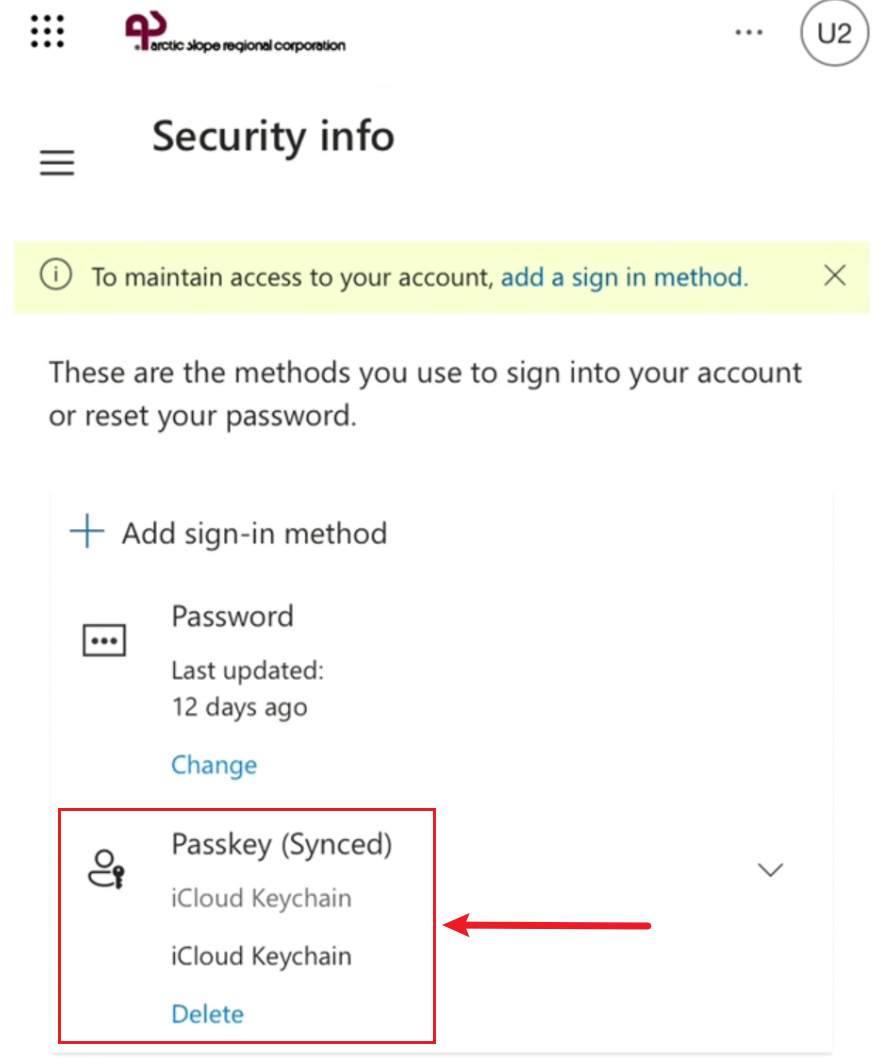
You're done. Your passkey is saved in your iCloud Keychain. You can use it on any device signed in with your Apple ID, including a Mac.
Need help? Contact the ASRC Service Desk for onboarding support, including when your Temporary Access Pass has expired.